
Technique 2: Persistence
Execution of techniques in MAAD-AF follow the same approach for all modules. To complete this lab, you will execute two more modules to get familiar with MAAD-AF workflow and become a pro at running M365 red team exercises in POVs. In this section you will establish persistence in the environment you managed to get access to.
Step 1: Select Account Module
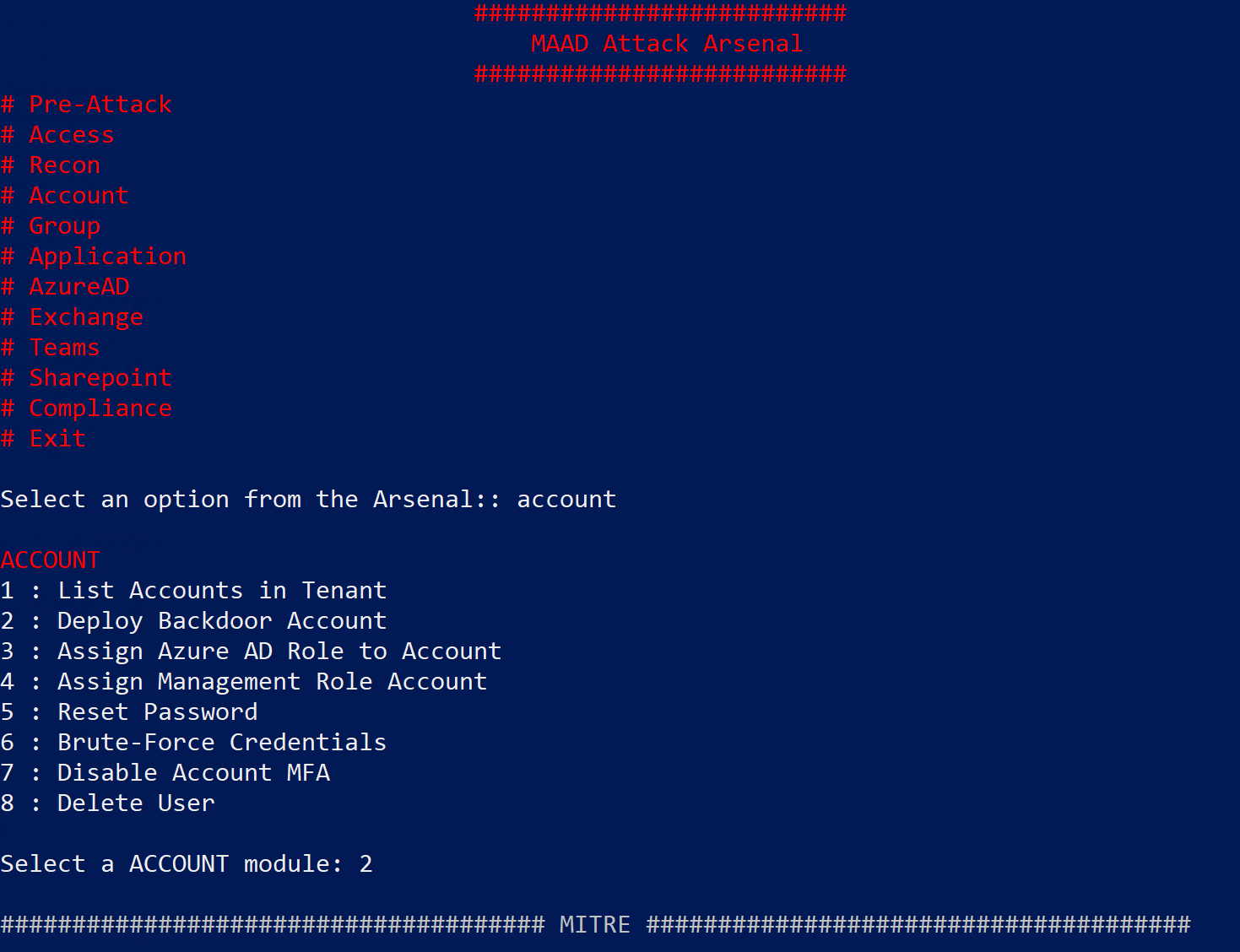
In Attack Arsenal menu, select the Account module by typing “account” and hitting enter.
Note: Module names are case-insensitive.
You dont have to type them exactly as they appear in the MAAD Attack Arsenal menu.
Step 2: Select Backdoor Sub-Module
The sub-modules menu lists specific actions you can execute using MAAD-AF. In this case the different sub-module options list actions that users can take on an account or related to an account in Entra ID.
For this section of the lab you want to establish persistence by deploying a backdoor account in the Entra ID environment.
Select option 2 by typing “2” and hitting enter.
Step 3: Deploy Backdoor
Follow the on-screen prompts in tool to establish persistence by deploying a backdoor account.
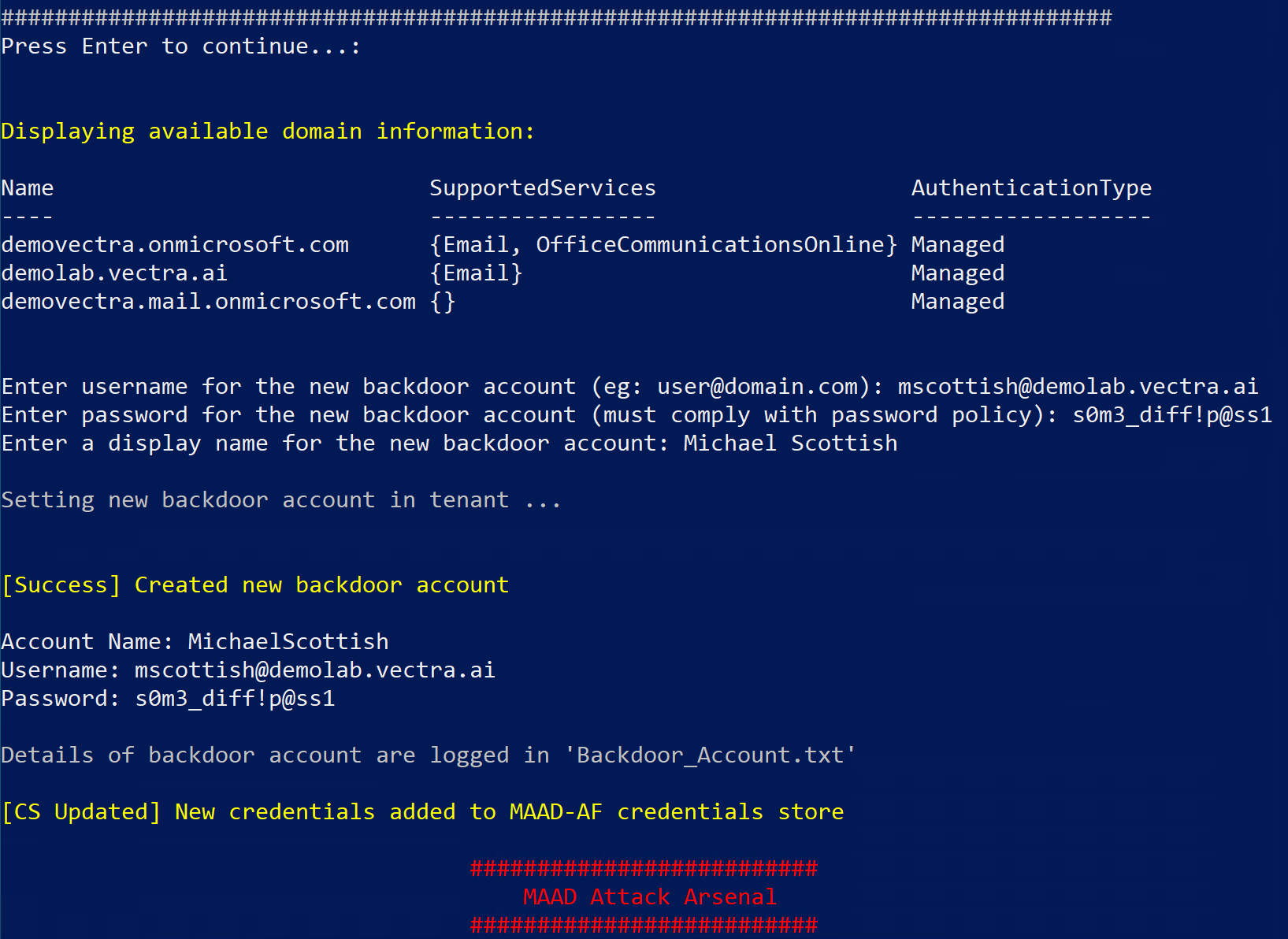
Prompt Enter username for backdoor account : Here enter username for your backdoor account in this format
backdooruser@domain.com. For the domain, you can choose any out of the list of domains displayed above by MAAD-AF. For this lab you can go with “demolab.vectra.ai”Prompt Enter password for backdoor account : Enter a password thats long and complex so typically 12 character long with a number and upper, lower and special characters.
Prompt Enter display name for backdoor account : Enter a display name for the backdoor account in this format
FirstName LastNameWatch MAAD-AF create a config with the information you provided and deploy your backdoor account in the tenant.
Upon completion, a summary of the newly deployed backdoor account is displayed. (Example in screenshot below)
Note:
Some interesting things to note here.
Beyond simply executing attack techniques, MAAD-AF packs additional intuitive features to make testing simple and easy.

Based on the attack technique executed, MAAD-AF chooses if the output of the technique is something needed for the future and saves it if needed.
In this case, the backdoor account info is needed so the attacker (aka you) can establish access with it in future.

The newly generated backdoor credentials are stored in "MAAD Credential Store"
and is displayed as an available credential next time you attempt establish access.

"MAAD Credential Store" is a built in feature of MAAD-Af that collects credntials from different attack techniques and also user fed credentials,
then displays them conveniently when those credential may be required such as during access creation.

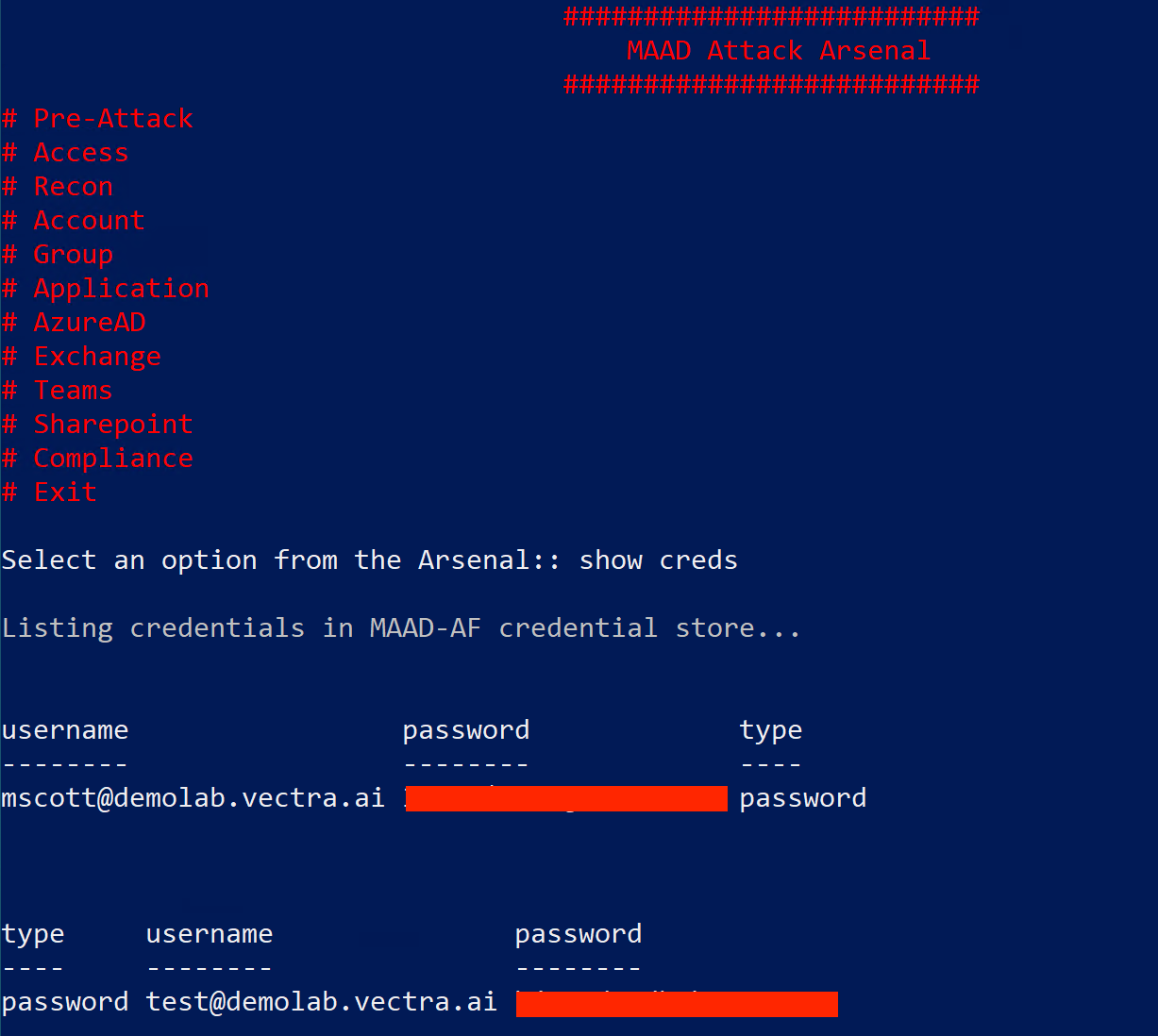
You can checkout the credentials available in your MAAD Credntial Store by typing "show creds" from "MAAD Attack Arsenal" menu.
Checkpoint: 3
Congratulations on establishing persistence. Now you will be able to access the target environment even if your original account gets locked out or reset. No validation screenshot needed here. Vectra will know if you successfully deployed a backdoor account ;)